Creating a Campaign Portfolio
Step 1: Select Brand and Ad Account
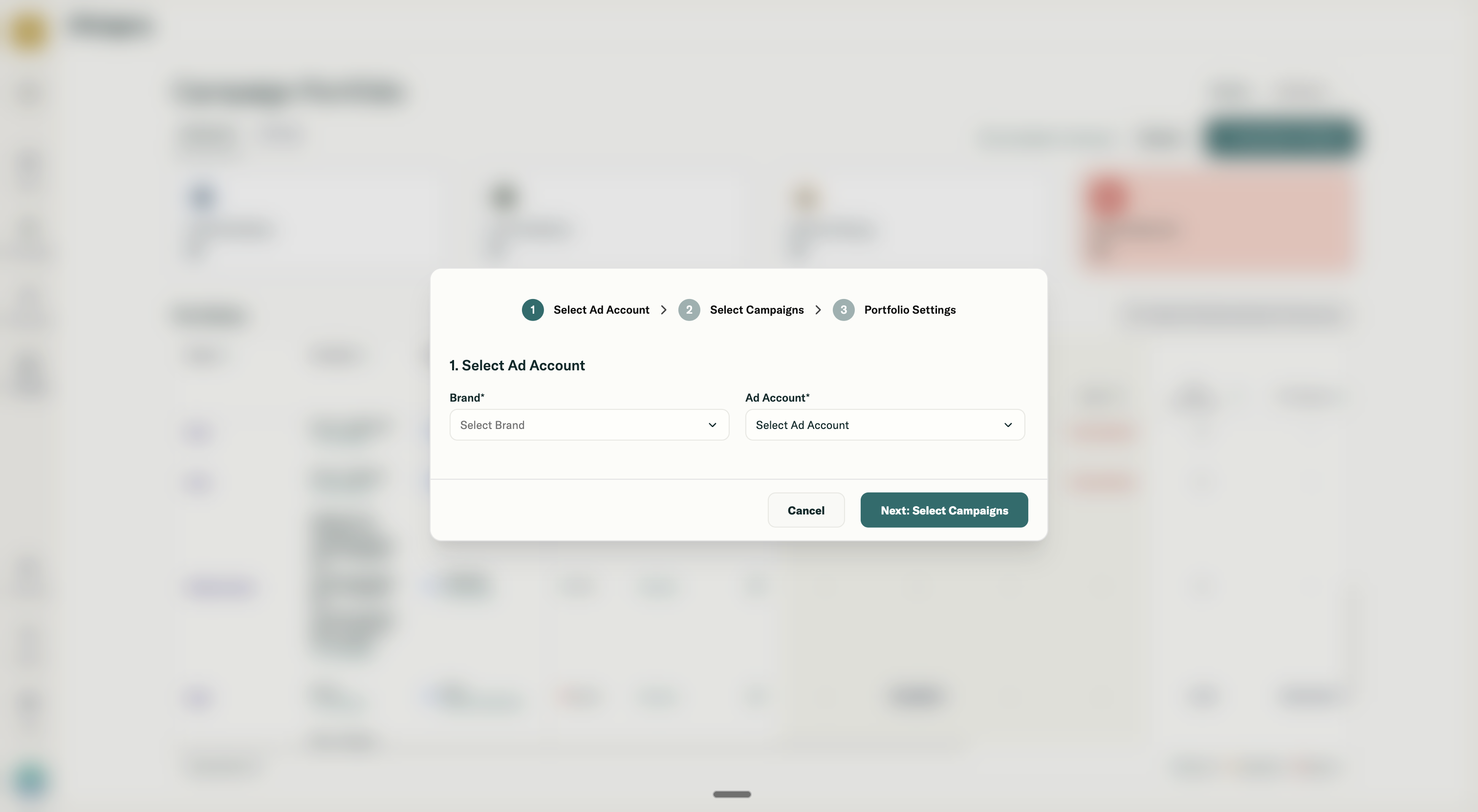
- Open the Campaign Portfolio dashboard
- Select the brand where you want to create the portfolio
- Choose an ad account under that brand
- The platform (Meta or Google) is auto-detected from the ad account
Step 2: Select Campaigns
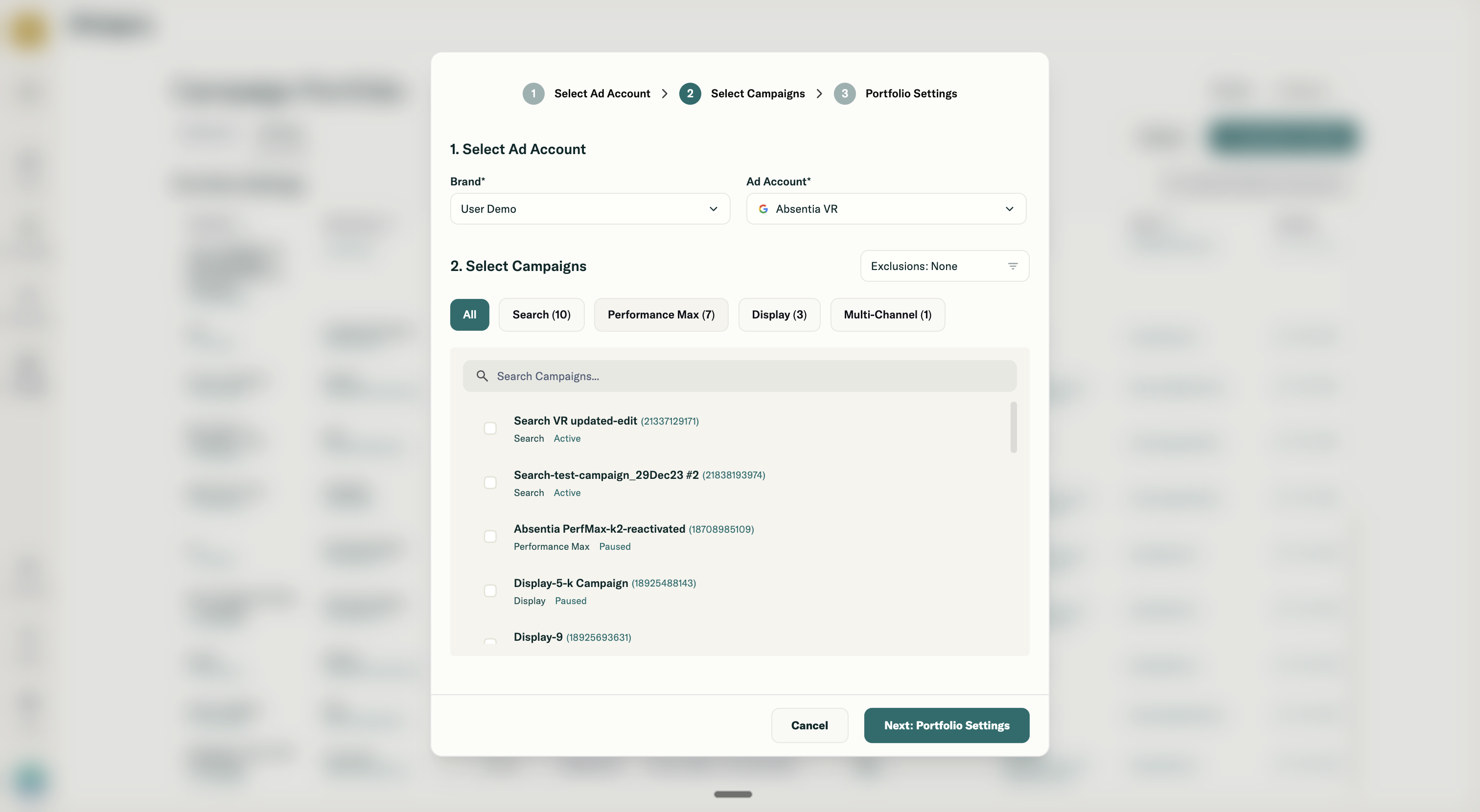
After selecting an ad account, you'll see its campaigns. Two filters are ON by default:
- Exclude campaigns already in a portfolio (global exclusivity)
- Exclude inactive campaigns
You can:
- Turn these filters off to see:
- Campaigns already claimed by other portfolios
- Inactive campaigns
- Filter by campaign objective (e.g., conversions, traffic)
Then:
- Select 1 to 50 campaigns to include in this portfolio
- 50 campaigns per portfolio is the current limit for performance and usability
- Continue to configuration
Note: Claimed campaigns (already in another portfolio) cannot be selected unless released.
Step 3: Configure Portfolio Settings
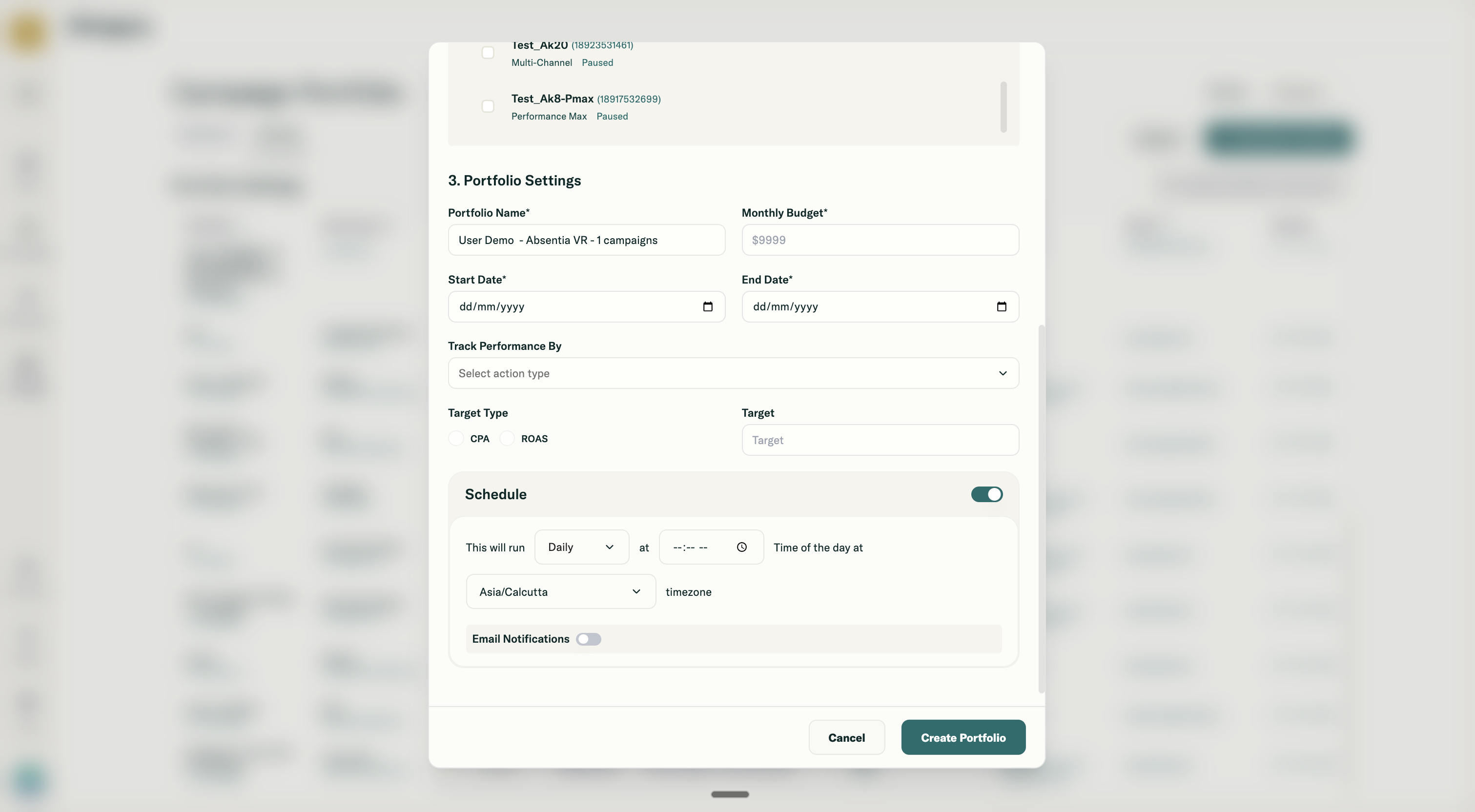
Required fields:
- Portfolio name
- Must be unique within the brand
- Monitoring start date
- Date from which budget tracking begins
- Monthly budget (mandatory)
- Used to calculate spend pacing
- Flight end date (mandatory)
- Defines the end of the monitoring period; required for pacing calculations
Optional KPI configuration:
- KPI type (optional)
- One of: ROAS, CPA, CPL, CPC, CPM
- KPI target (required if KPI type selected)
- Used to evaluate KPI health
Sync configuration:
- Scheduled daily sync (optional, recommended)
- Enable or disable
- Set time (24-hour format) and timezone for the daily sync
Step 4: Create Portfolio
When you click Create:
- The system validates:
- All mandatory fields (name, start date, monthly budget, flight end date)
- KPI target if a KPI type is selected
- On success:
- Portfolio configuration is saved
- Selected campaigns are marked as claimed globally
- An initial sync is triggered
- Email notifications are configured so that stakeholders can be notified if the portfolio needs attention (pacing or KPI issues)
- You are redirected to the portfolio view with a "Syncing..." status until the first data load completes