Managing Your Workflows
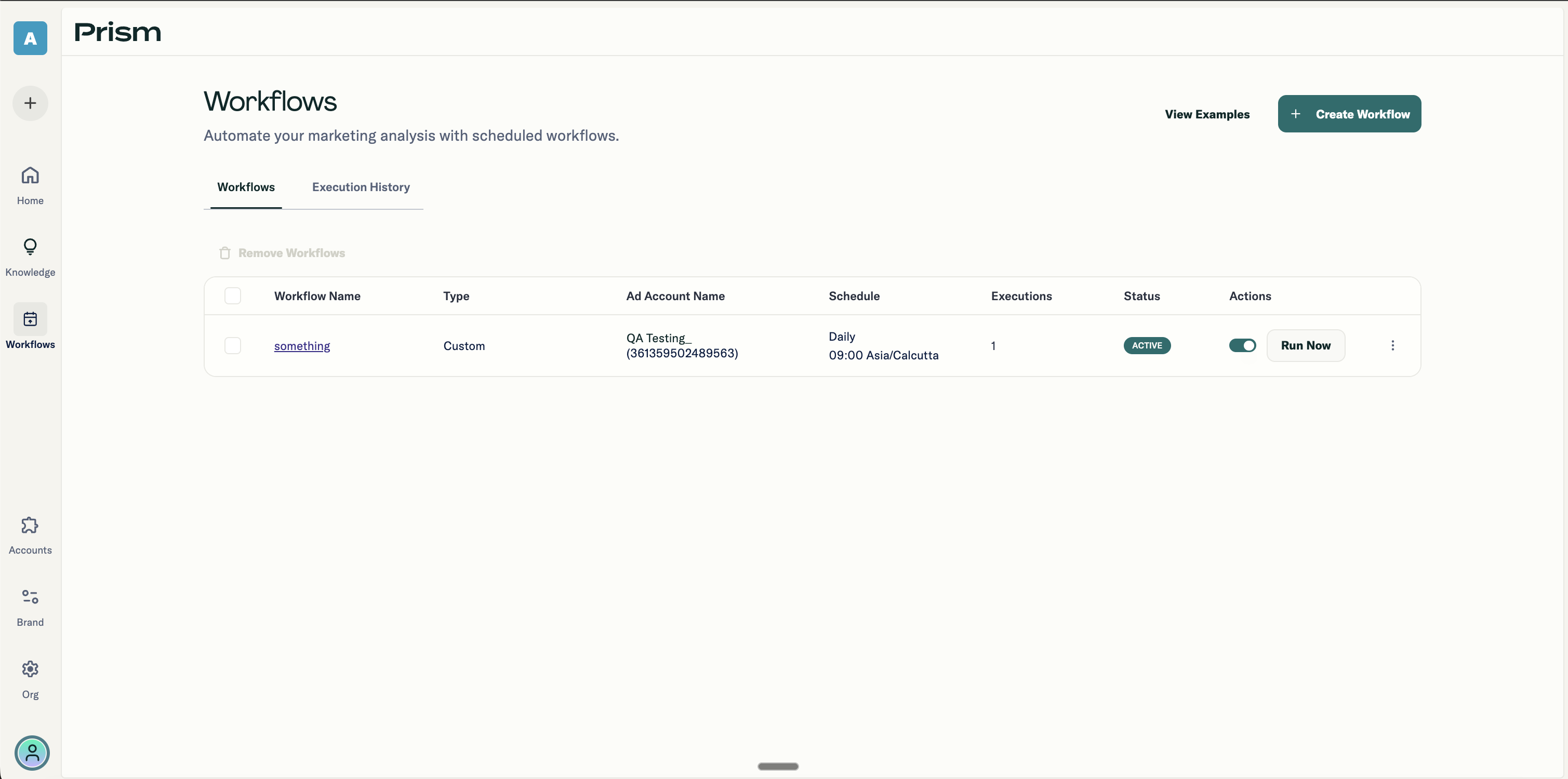
The Workflows tab shows all your created workflows. For each one, you can see:
- Name
- Type
- Associated ad account
- Schedule (frequency and time)
- Status (active or inactive)
- How many times it has been executed
Available Actions
Each workflow has a set of actions:
- Toggle switch: Enables or disables scheduled execution without deleting the workflow
- Play icon: Triggers an immediate manual run (only for enabled workflows)
- Pencil icon: Opens the configuration modal for editing
- Trash icon: Deletes the workflow entirely
You can also select multiple workflows using the checkboxes and delete them in bulk.
Manual Execution
When you click the Run button on an enabled workflow, a confirmation modal appears asking if you want to execute it immediately.
Confirming this triggers the workflow right away and creates a new conversation with the results. This is useful when you need ad-hoc analysis outside the regular schedule.